Application Bar
An application bar is a bar (on the top part of a desktop and on top of every window) that contains all menus and other specific controls associated with an application.
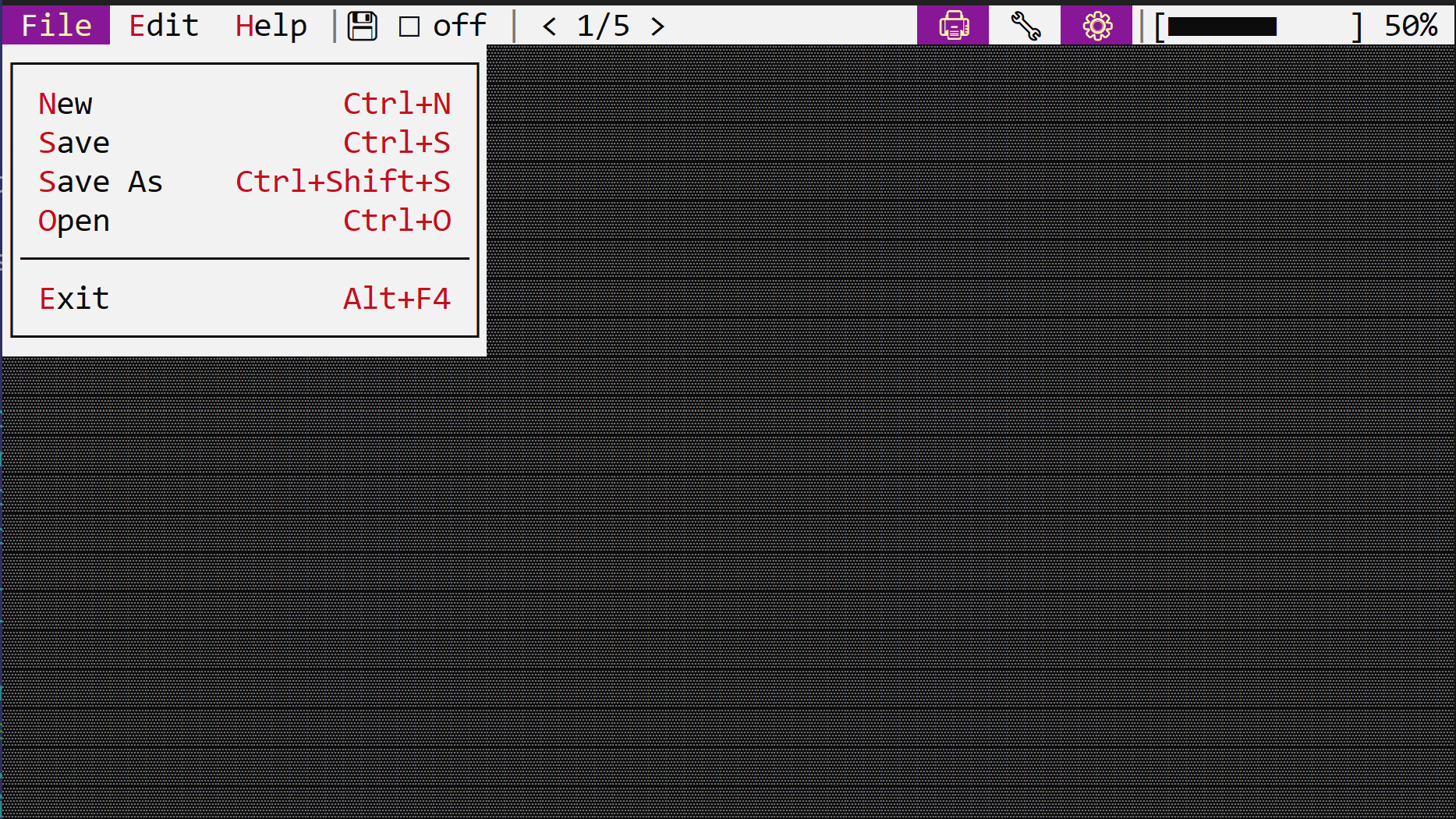
The application bar is unique per application. This means that you need to enable it when a new application is created. A typical way to do this is by using the .app_bar() method when building an application, as in the following snippet:
#![allow(unused)]
fn main() {
App::new().app_bar().run()
}
You cannot directly create an application bar. However, all controls (including windows and desktop) have an appbar() method that returns a mutable reference to the application bar.
Events
To work with the application bar, you will need to implement AppBarEvents on your window or custom control.
pub trait AppBarEvents {
    /// Called when an app bar button is being clicked.
    fn on_button_click(&mut self, button: Handle<super::Button>);

    /// Called when a toggle button's state changes.
    fn on_togglebutton_state_changed(&mut self,
                                     togglebutton: Handle<super::ToggleButton>,
                                     selected: bool);

    /// Called when a switch button's state changes.
    fn on_switchbutton_state_changed(&mut self,
                                     switchbutton: Handle<super::SwitchButton>,
                                     selected: bool);

    /// Called when the app bar needs to be updated.
    fn on_update(&self, appbar: &mut AppBar) {}
}
The on_update method in particular is called whenever the application bar needs to be updated. At this point, you can decide which items to show in the application bar, via the appbar.show(...) method.
#![allow(unused)]
fn main() {
#[Window(events = AppBarEvents)]
struct MyWin { /* data member */ }
impl MyWin {
    fn new() -> Self {
        let mut w = Self { /* code to instantiate the structure */ };
        // other initialization methods
        let appbar_item_handle = w.appbar().add(/* appbar item */);
        // store the handle for later use
        // add other appbar items
        w
    }
    /* other methods */
}
impl AppBarEvents for MyWin {
    // other event related methods

    fn on_update(&self, appbar: &mut AppBar) {
        // this is called whenever the application bar needs to be updated
        // at this point, you can decide which items to show in the application bar.
        appbar.show(/* appbar item handle */);
    }
}
}
It is also important to note that on_update is called only if the current focus (or one of its children) has focus. This implies that, except when a modal window is opened, this method will always be called for the desktop object.
Whenever the focus changes, the application bar is cleared and the method on_update is invoked again for each control from the focused control up to its oldest ancestor (in most cases, the desktop).
You can always request an update to the application bar by calling the .request_update() method that every control has. This method will force AppCUI to call on_update again from the focused control up to its oldest ancestor. Keep in mind that this will not necessarily call on_update for the control that calls request_update, unless that control has the focus.
Usage
An application bar has the following methods:
| Method | Purpose |
|---|---|
add(...) | Adds a new item to the application bar (including an order and position) and returns a handle for it |
show(...) | Shows an item in the application bar |
get(...) | Returns an immutable reference to an item from the application bar |
get_mut(...) | Returns a mutable reference to an item from the application bar |
Remarks: The show(...) method is typically used to show an item in the application bar. This method should only be called from AppBarEvents::on_update(...) (if overridden). By default, all items are hidden, and whenever the focus changes, the AppCUI framework hides all items, starts from the focused control, walks up to its ancestors, and calls this method to decide which items to show.
Item order and positioning
Each item in the application bar has an order and a position. The order is used to determine the order of the items in the application bar. The position is used to determine the position of the item in the application bar (to the left or to the right).
orderrepresents a value of typeu8between 0 and 255 (the lower the value, the earlier the item will appear in the application bar)positionrepresents a value of typeappbar::Sidethat can be eitherSide::LeftorSide::Right
Algorithm:
When the focus changes, the AppCUI framework does the following:
- Hides all items from the application bar
- Starts from the focus control and moves to its ancestors and calls the
AppBarEvents::on_update(...)method to decide which items to show.- each control should call
appbar.show(...)method with the handle of the item it wants to be shown#![allow(unused)] fn main() { impl AppBarEvents for <Control|Window|Desktop> { fn on_update(&self, appbar: &mut AppBar) { appbar.show(/* handle of the first item to show */); appbar.show(/* handle of the second item to show */); // ... } } }
- each control should call
- Once this process is done (meaning that we reach the desktop control), the items are sorted based on their
orderproperty. This allows a control to position some items before its parent control. - After the sort process is done, items are extracted and their position is configured based on their
positionproperty.- if the
positionproperty isSide::Left, the item is positioned from the left side of the application bar - if the
positionproperty isSide::Right, the item is positioned from the right side of the application bar
- if the
Remark: If there is no space available to position an item without overlapping with other items, the process stops and the rest of the remaining items will not be displayed (even if the user has called the .show(...) method for them). This typically happens if the terminal is too small (in width) to fit all items.
Let’s see an example with 3 items (‘A’, ‘B’, and ‘C’) and a terminal width of 10 characters (we will assume that ‘A’, ‘B’, and ‘C’ each have a width of 2 characters):
| Examples | ‘A’ offset | ‘B’ offset | ‘C’ offset | Observations |
|---|---|---|---|---|
A (order 0, position Left)B (order 1, position Left)C (order 2, position Left) | 0 | 2 | 4 | All items are positioned one after another |
A (order 0, position Left)B (order 1, position Left)C (order 0, position Right) | 0 | 2 | 8 (10-2) | First we position A , then C(both have order 0), and finally B(in the space between A and C) |
A (order 0, position Left)B (order 1, position Right)C (order 0, position Right) | 0 | 6 (C-2) | 8 (10-2) | First we position A , then C(both have order 0), and finally B(relative to C) |
A (order 2, position Left)B (order 1, position Left)C (order 0, position Left) | 4 | 2 | 0 | Items are positioned in reverse order |
Items
An application bar item can be one of the following types:
Each item has the following properties:
- position
- caption
- tooltip
- order
- width
- enabled or disabled